Send new contacts to HubSpot
Each new contact on your Kards is created or found in HubSpot within a minute, with a note of how you met. For you, or your whole team. Free on every plan.
eKard sends each new contact on your Kards to HubSpot within a minute: a new contact in HubSpot, or the one already there, with a note of how you met. Connect your own HubSpot for your own Kards, or, on a team, an admin connects the team's HubSpot once and chooses which team Kards send to it. It's free on every eKard plan, and works with HubSpot's free CRM.
Who can connect, and what you need
- A eKard account, on any plan, the free one too. For a team's HubSpot, you need to be one of the team's admins in eKard.
- A HubSpot account, the free CRM included, where you're a Super Admin or have HubSpot's "App Marketplace access" permission: HubSpot asks for one of them to connect an app.
- A computer's or phone's web browser. In the eKard app, the page says to connect from a browser, because HubSpot's sign-in doesn't open inside apps.
Until eKard is listed in HubSpot's App Marketplace, HubSpot lets only a limited number of HubSpot accounts connect it. If eKard says "HubSpot limits new connections" where "Connect HubSpot" would be, write to us and we'll add you.
Connect your own HubSpot
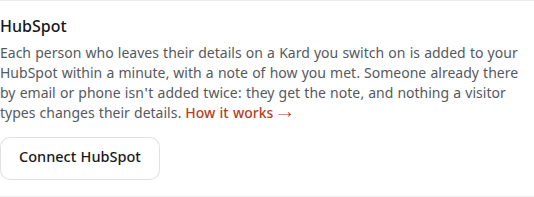
- Open Kards, pick the card, and open its Settings tab. Under "Send new contacts to other apps", press "Connect HubSpot". (Or open Connected apps in your account menu.)
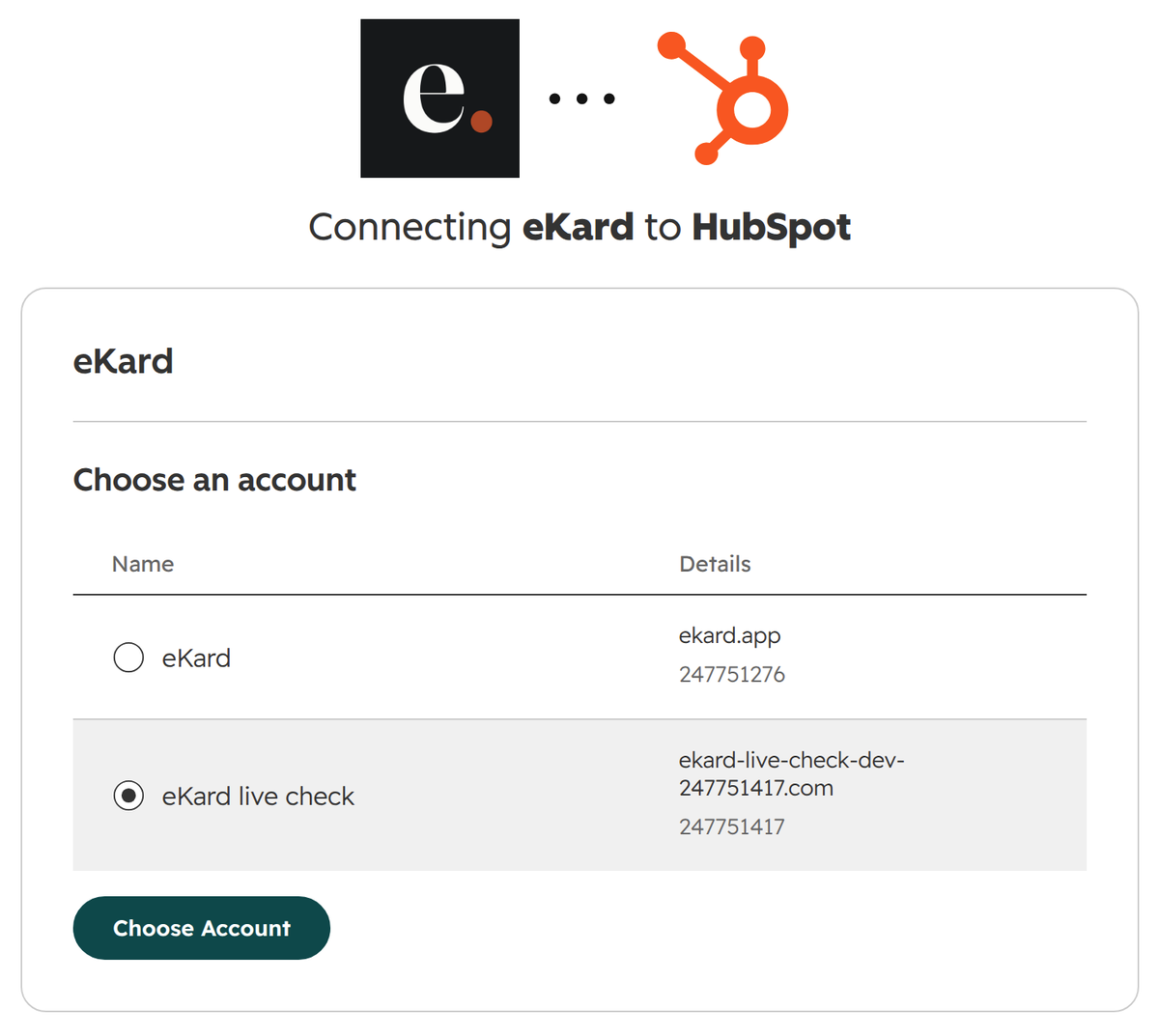
- HubSpot opens. Choose the HubSpot account to connect, and press "Choose Account".
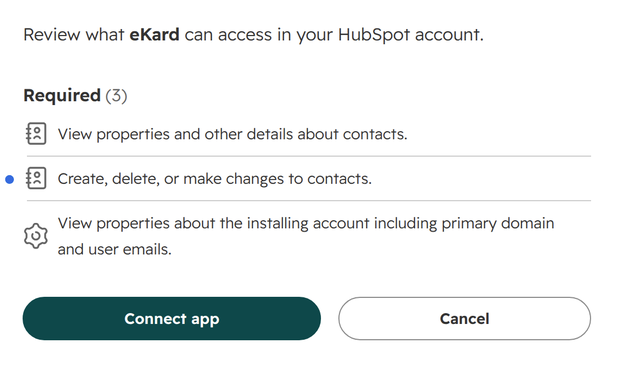
- HubSpot lists what eKard asks for: to view and to edit your contacts (the scopes
crm.objects.contacts.readandcrm.objects.contacts.write). HubSpot adds a third to every app, to see the account's own details (oauth): eKard reads only the account's name and domain, to show you which HubSpot is connected. Press "Connect app".
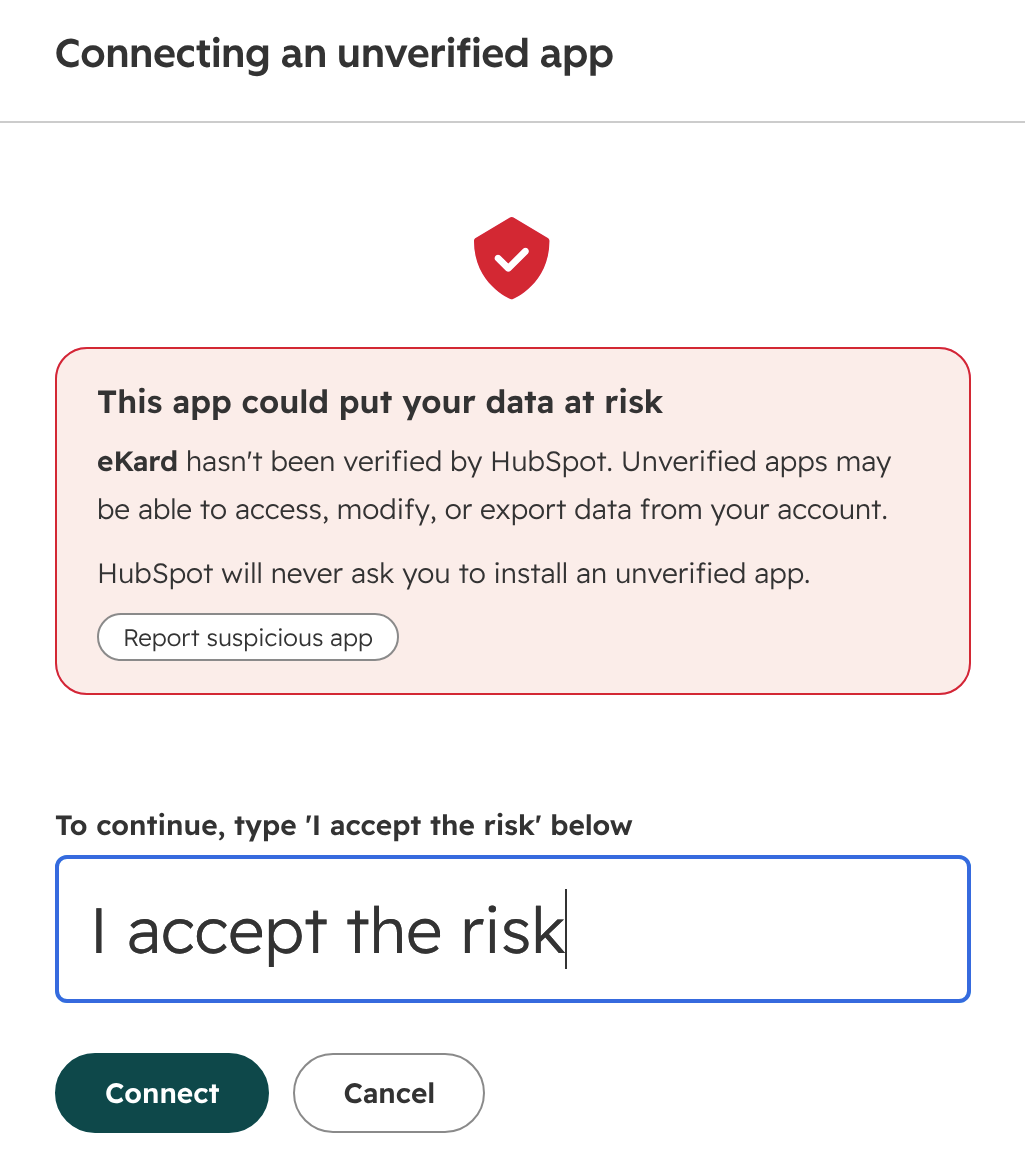
- Until HubSpot has reviewed eKard for its App Marketplace, it calls the app unverified and asks you to type "I accept the risk". Type it, and press "Connect".
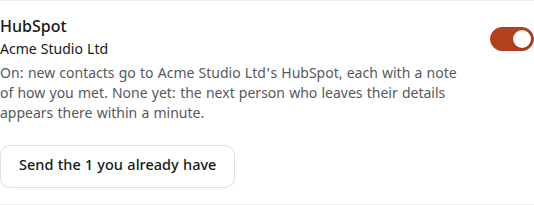
- Back in eKard, it says "HubSpot connected". Turn on the switch beside HubSpot for each Kard that should send. It says "On: new contacts go to …'s HubSpot, each with a note of how you met."
- Have contacts already? Press "Send the … you already have": up to 1,000 at a time, newest first. The page shows how far it's got.
Connect your team's HubSpot
- As a team admin, open the team, then Settings, then Apps, and press "Connect HubSpot for the team".
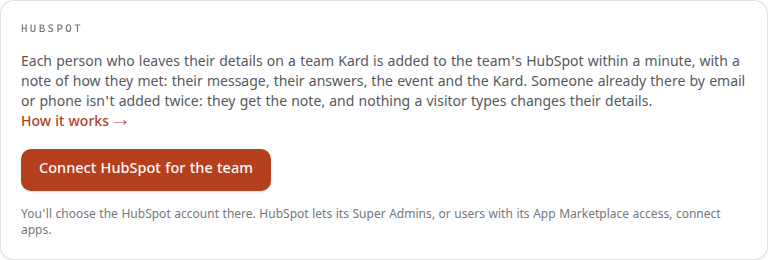
- Choose the team's HubSpot account and connect it, as above.
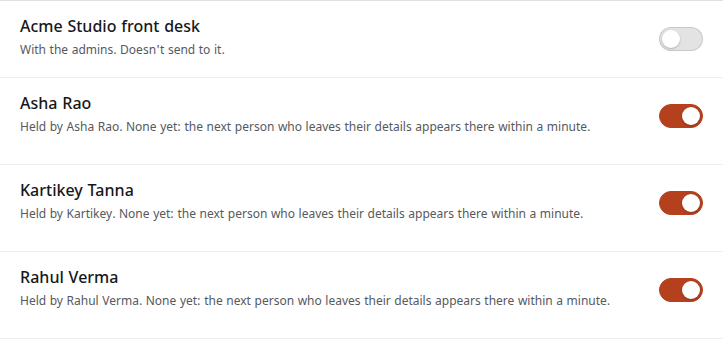
- Back on Apps, choose which Kards send to it: "Every team Kard, and new ones" (the first choice), or "Only the Kards switched on below", with a switch for each Kard.

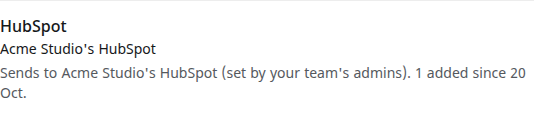
- On each Kard, its holder sees "Sends to …'s HubSpot (set by your team's admins)". They can't switch it off; the team's admins can.
Apps also lists every place the team's Kards send their new contacts, the apps holders connected for themselves too: "Rahul's Kard also sends to rahul@gmail.com's Google Contacts". If the admin who connected HubSpot leaves the team, is made a member, or deletes their account, it pauses, because they chose which HubSpot account it sends to. New contacts are kept in eKard, every other admin gets an email, and Apps offers "Keep sending to …" (the same HubSpot account) or "Reconnect HubSpot for …" (to choose again).
What goes to HubSpot, field by field
| eKard | HubSpot |
|---|---|
| Their first and middle names | First name (firstname) |
| Their family name | Last name (lastname) |
Email (email): how HubSpot knows them | |
| Phone, in international form (+91 98200 12345 as +919820012345) | Phone number (phone) |
| Company | Company name (company) |
| Job title | Job title (jobtitle) |
| Their own Kard, when they shared it back (else their card's website) | Website URL (website) |
| Their message; their answers, each with your question; their card's notes; how they came; how they found your Kard; the event; which Kard and its link; the date; your own note; and a link to them in eKard | One note on the contact, dated when they came |
eKard never sets a contact's lifecycle stage, lead status or owner: those are your team's to decide in HubSpot. It sends nothing else: no visits, no addresses it saw, no other contacts.
Already in HubSpot?
Someone with the same email isn't added twice. With no email, eKard looks them up by phone number, then mobile phone number. Found, they get the note, and their details in HubSpot stay as they are: nothing your team wrote is changed or removed.
- Left by a visitor (sent from your Kard, shared back, booked): nobody checks that the email or phone someone types is theirs, so nothing they typed goes into the contact. The note opens with "Unverified: typed by a visitor on eKard and not checked", then what they typed. Confirm it with the person, using details you already had, before you copy any of it across.
- Entered by you (typed in, or scanned from a card you were handed): the fields that are empty there are filled too.
Each person who leaves their details gets one note, however many times eKard has to try. Two of your eKard contacts with the same email are one contact in HubSpot, each with its own note.
Watch it work
The Kard's "Send new contacts to other apps" page lists the recent deliveries, each "Sent to HubSpot", or what HubSpot said if it refused someone's details (an email it doesn't accept, say): that person alone isn't sent, and the rest still go.

Under Connected apps (or the team's Apps), "Check connection" asks HubSpot about the account, without touching any contact.
If HubSpot stops accepting eKard's access, you get one email (for a team's, every admin does), and the Kard says "Paused" with a Reconnect button. New contacts are kept in eKard meanwhile; after reconnecting, "Send the … you already have" sends the ones that missed it.
Disconnect, and what happens to your data
- Open Connected apps in your account menu (for a team's, the team's Settings, then Apps).
- Press "Disconnect" beside HubSpot, and confirm.
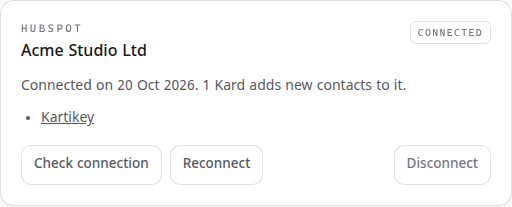
eKard asks HubSpot to delete its access and forgets it, and no Kard sends to that HubSpot any more. The contacts and notes already in HubSpot stay there, because they're yours, and the contacts in eKard stay in eKard. Deleting your eKard account disconnects your own HubSpot the same way.
To remove eKard from inside HubSpot as well, uninstall it from HubSpot's connected apps, as HubSpot's own help on uninstalling an app shows.
Deleting a contact in eKard leaves it in HubSpot, and deleting one in HubSpot doesn't touch eKard. If someone asks you to remove their details, delete them in both.
Help
Write to hello@ekard.app with what you see and when: a person answers, usually within a day.